


Srnubi 10.26 inch 4K ADAS Car DVR with 360° Rotation Dash Cam Wireless Carplay Android Auto Mirror Link BT WIFI AUX FM Dashboard
Srnubi 10.26 inch 4K ADAS Car DVR with 360° Rotation Dash Cam Wireless Carplay Android Auto Mirror Link BT WIFI AUX FM Dashboard
SPECIFICATIONS
AUX: Support
Assembly Mode: Portable Recorder
Battery: None
Bluetooth: Support
Brand Name: srnubi
Built-in Screen: Yes
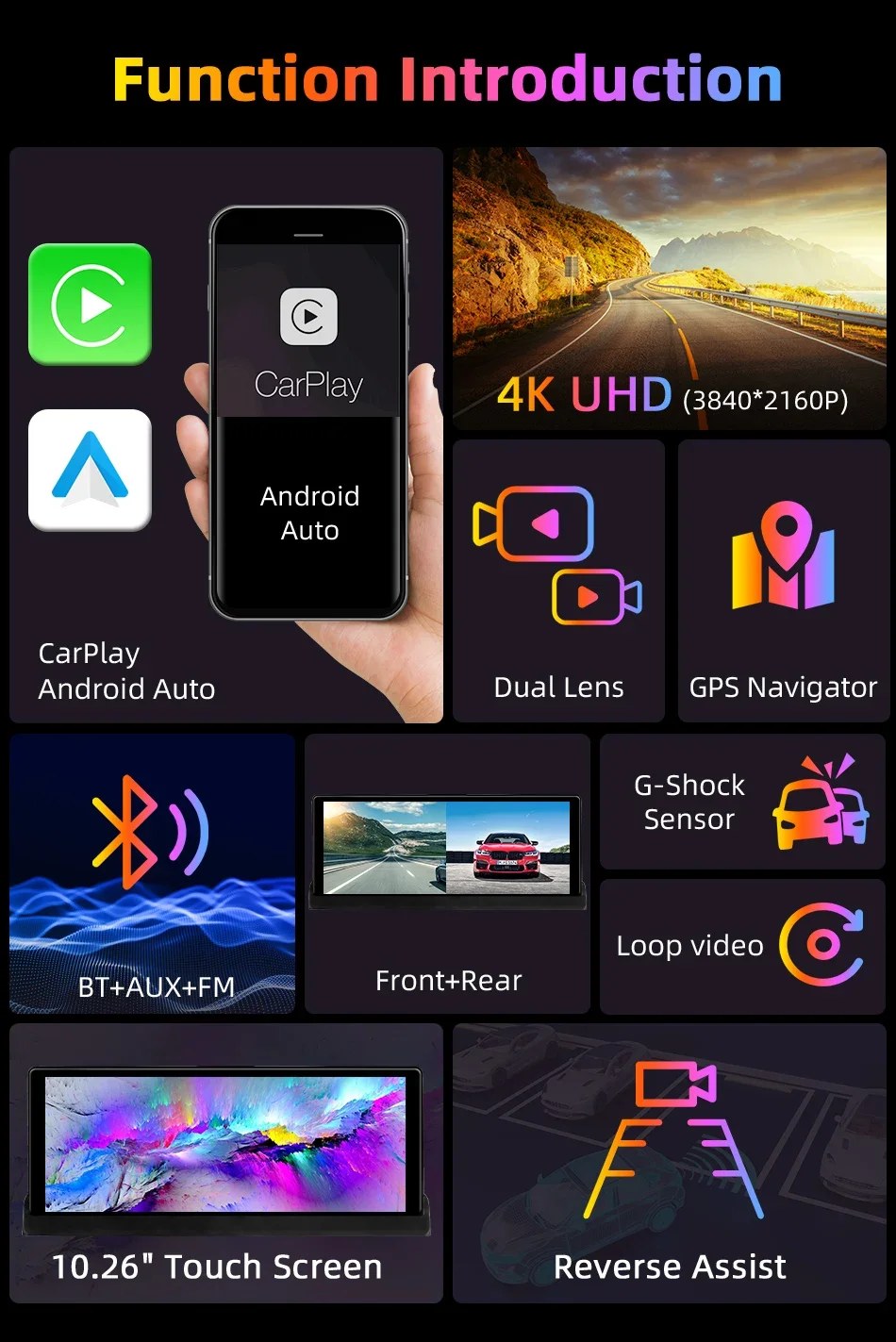
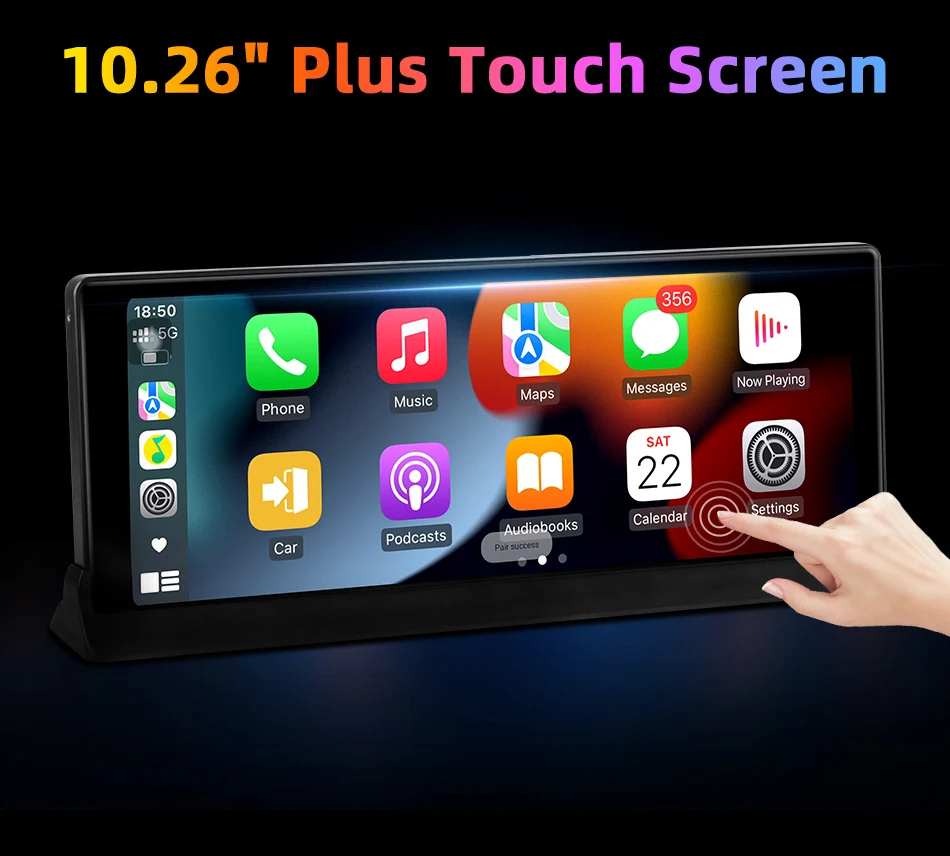
CarPlay and Android Auto: Support
Certification: CE
Chipset Manufacturer: Allwinner
Display: IPS
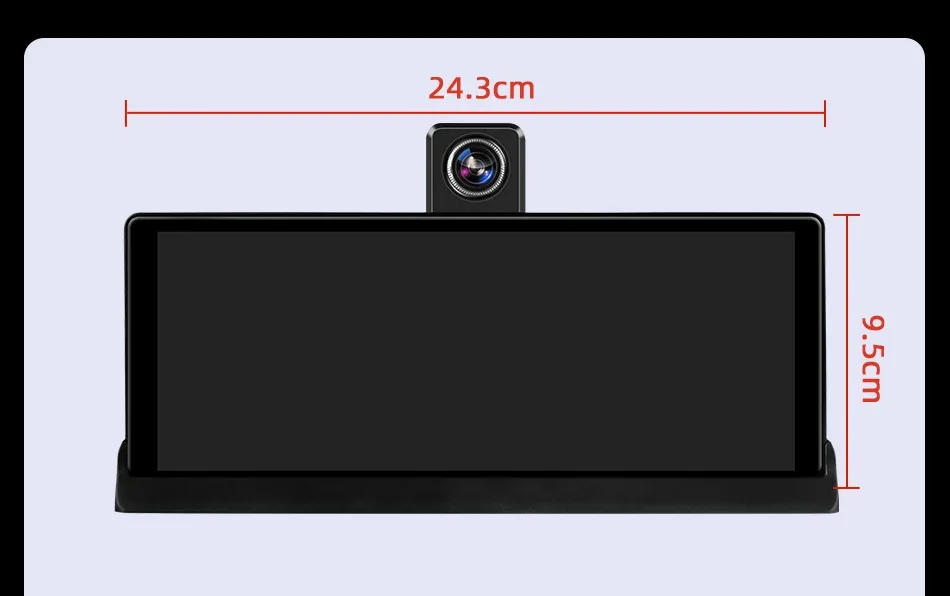
Display size: 10.26 inches touch screen
FM Connection: Support
Frames Per Second: 30
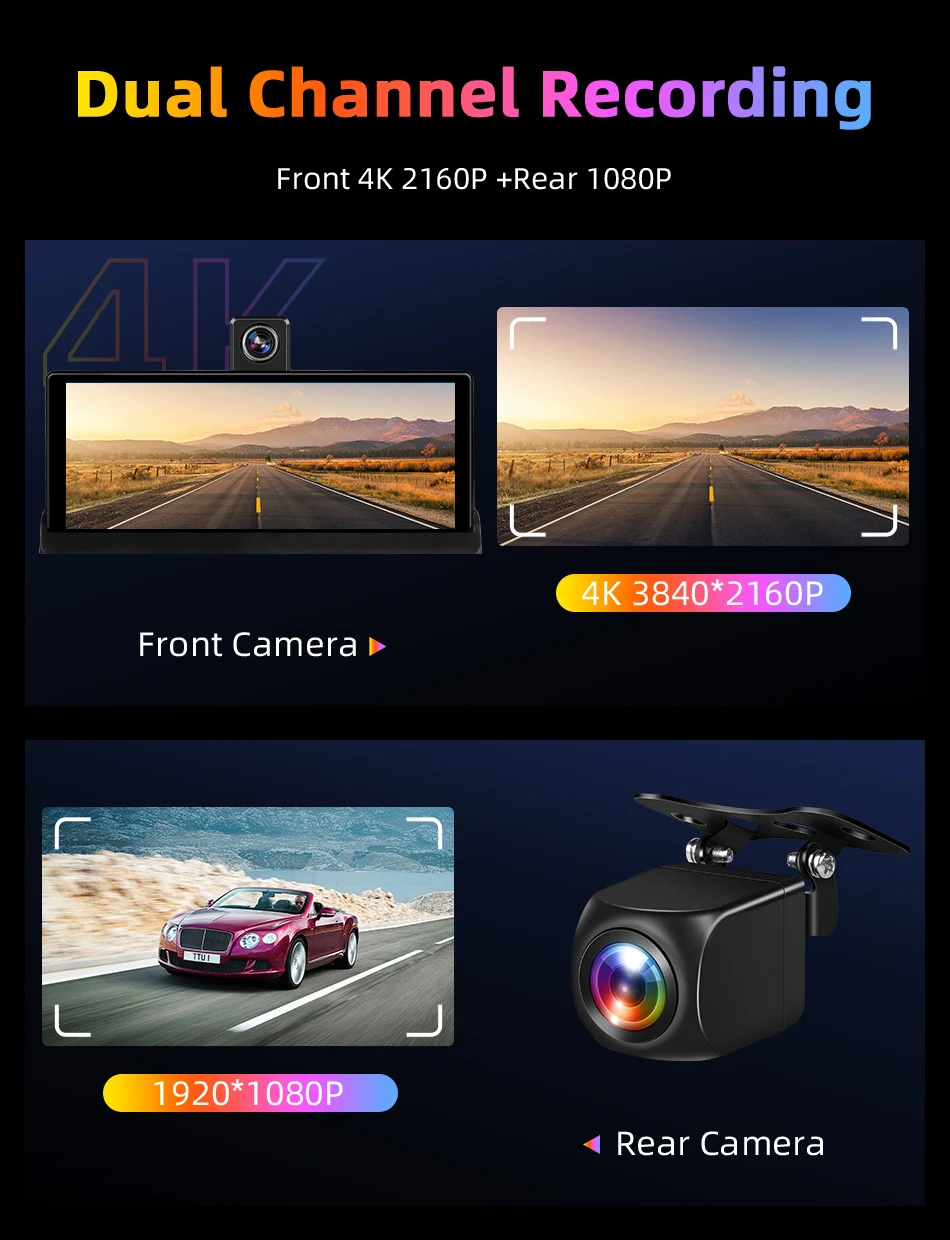
Front camera: 4K 3840*2160
GPS logger: NONE
Imaging Sensor: Sony IMX307
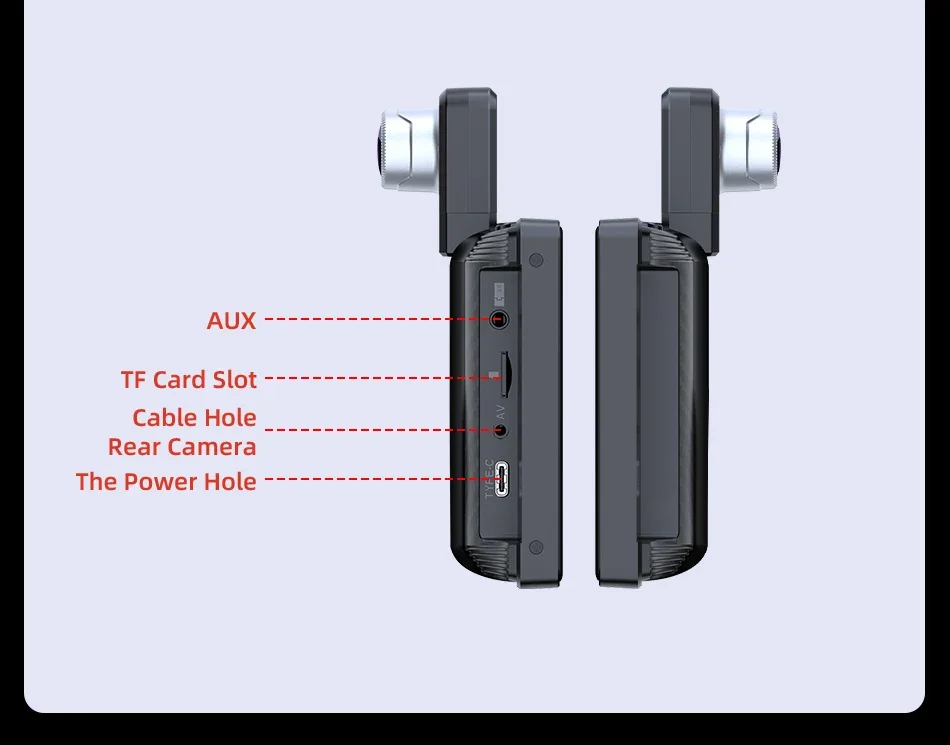
Interface: AV-In,Wi-fi,Micro SD/TF,Bluetooth
Is Batteries Included: no
Item Type: Car DVR
Loop-Cycle Recording Feature: Yes
Max External Memory: 128G
Memory Card Required Reding Speed: Class 10
Mirror recorder: Support
NightShot Function: Yes
Number Of Lenses: 2
OSD Language: Catalan,Chinese (Simplified),Chinese (Traditional),Croatian,czech,Danish,English,Filipino,Finnish,French,Galicia,German,Greek,Icelandic,Irish,Italian,Japanese,Korean,Latin,Latvian,Lithuanian,Macedonian,Norwegian,PERSIAN,Polish,Portuguese,Romanian,Russia,Russian,Slovenian,Spain's Basque,Spanish,Swedish,THAI,Ukrainian,Welsh
Origin: Mainland China
Original Package: Yes
Rear Camera: Yes
Rear camera: 1920*1080P optional
Screen Ratio: 16:9
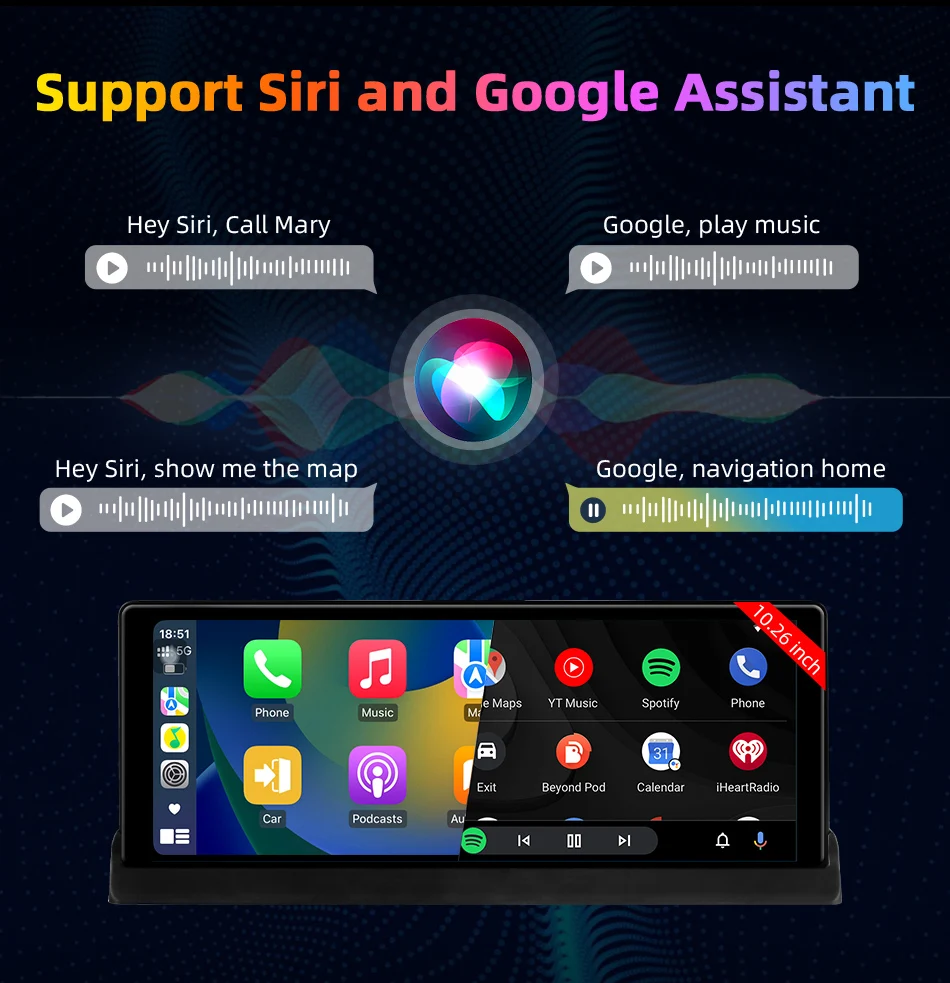
Special Features: G-Sensor,motion detection,With Rearview Mirror,Waterproof,Anti Fog,Anti Vibration,Real Time Surveillance,Automatic White Balance,Wide Dynamic Range,wifi function,Bluetooth,Voice Control,Parking Monitor
Touch Screen: Yes
Video Code: H.264
Weight: 1.500kg
Srnubi,Performance and quality assurance
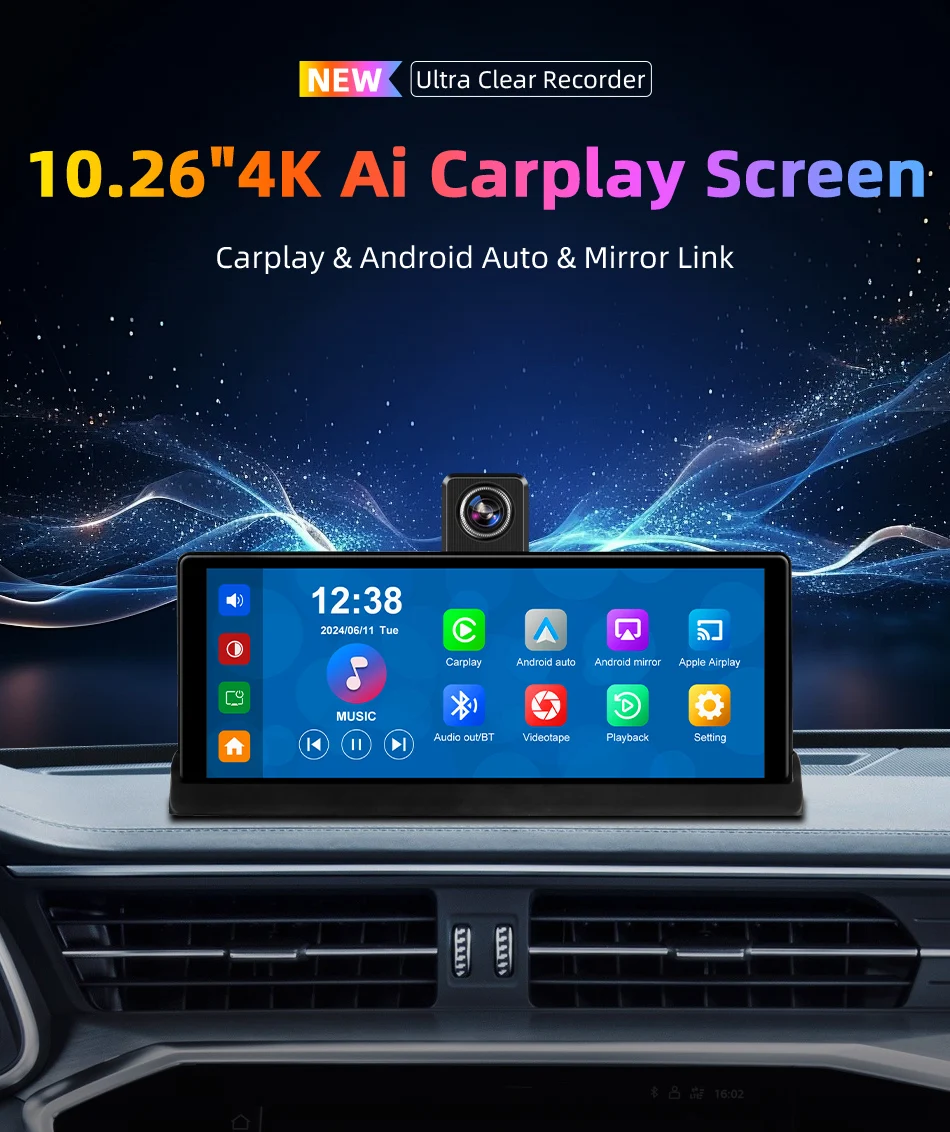
10.26 inch 360° Rotate 4K CarPlay DVR
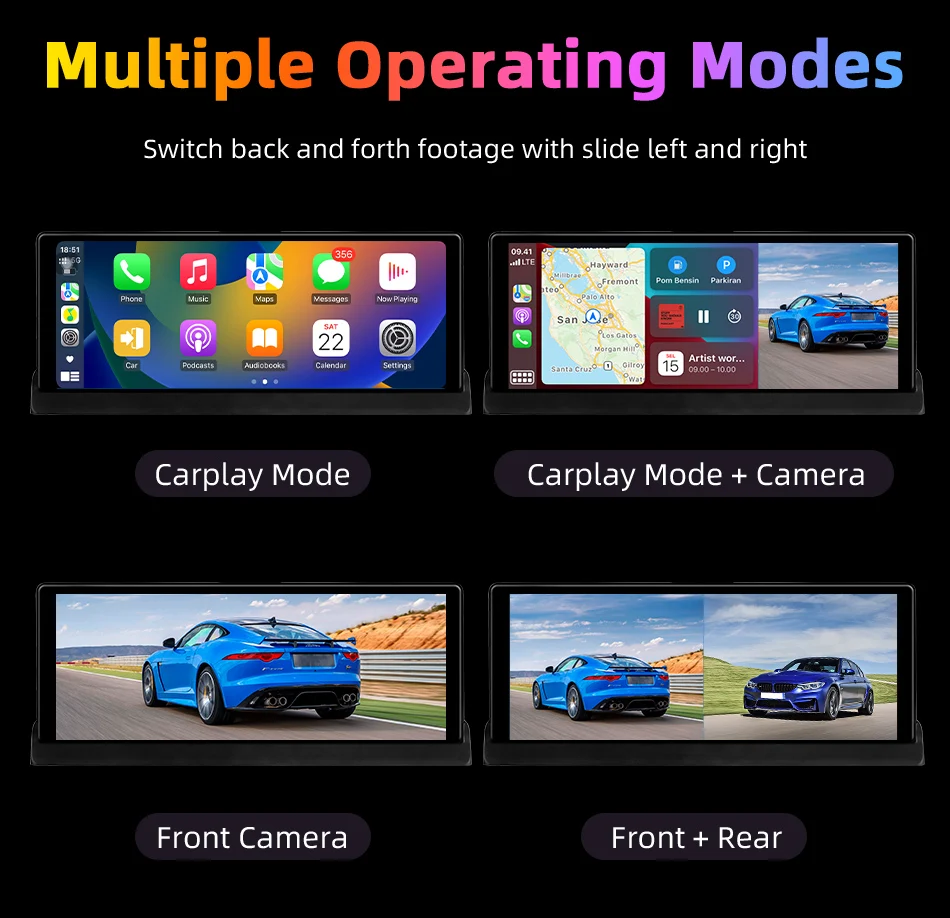
Supports Four Screen Projection Modes:
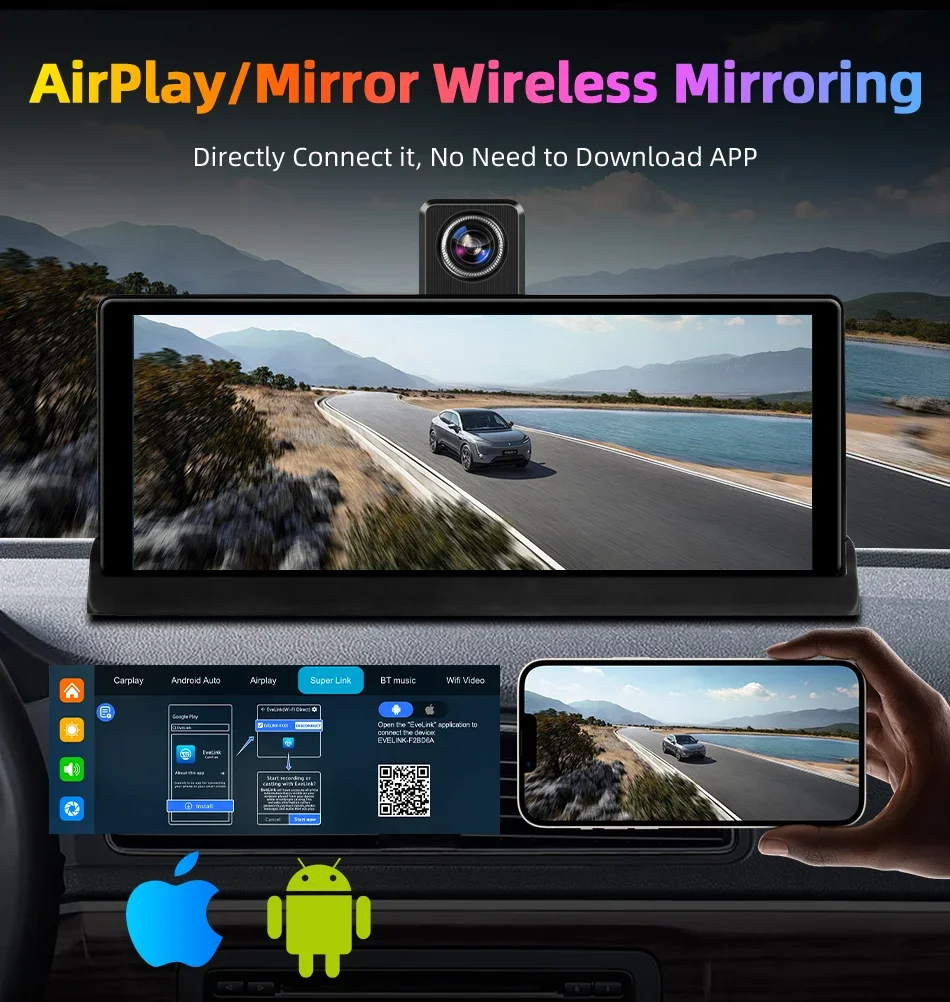
For Iphone: Carplay/AirPlay
For Android Phone:Android Auto/Miracast
Language Support:
English, Chinese, Korean, Japanese, Portuguese, Polish, Spanish, Arabic, French, German, Italian, Russian.
About Regarding the front camera function:
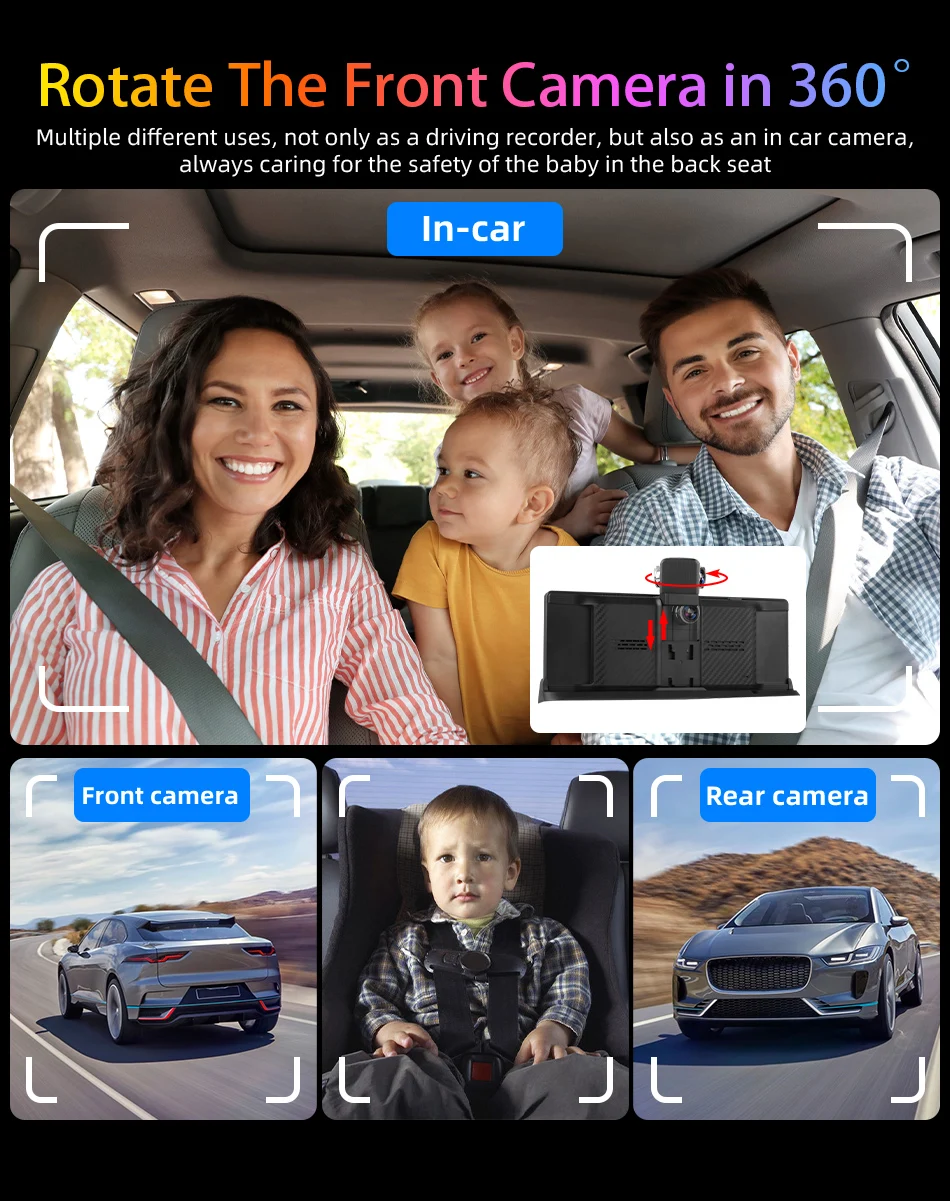
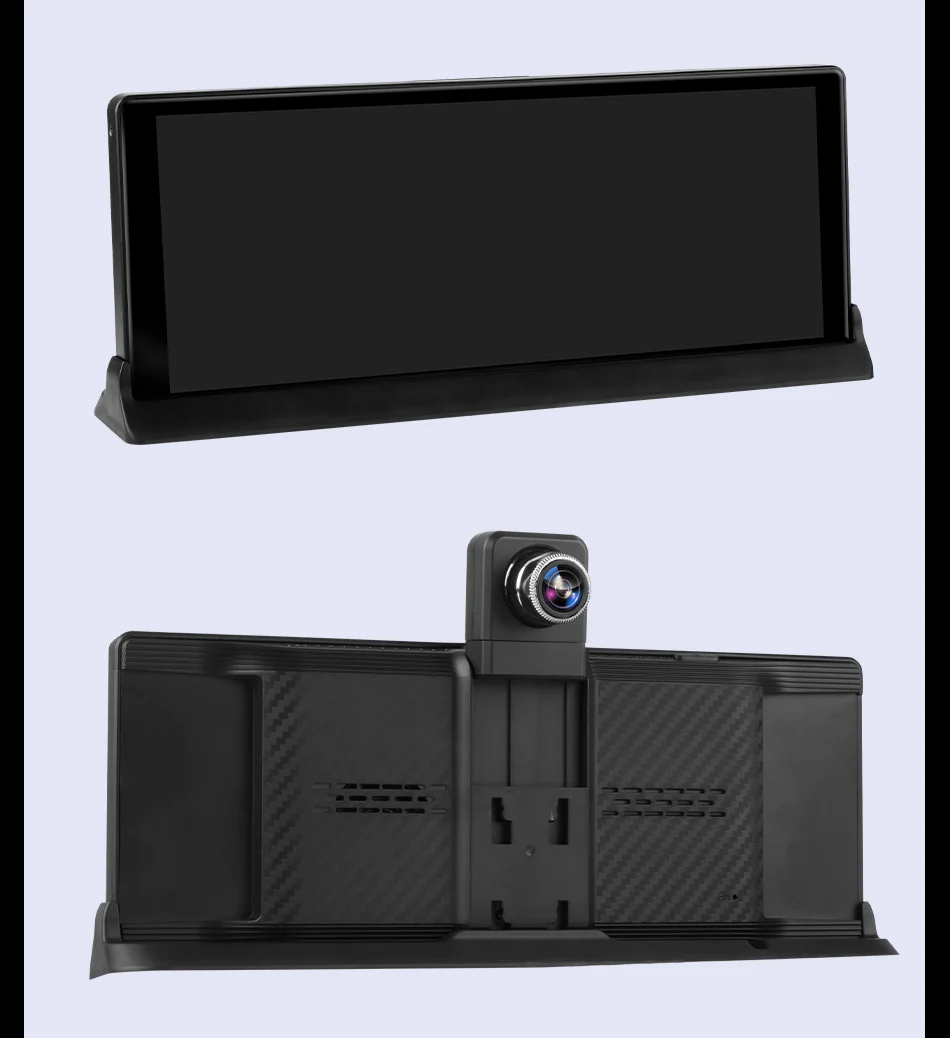
The front camera supports up and down movement and 360 degree rotation, which can capture images of people inside the car, such as taking care of your child's situation at any time.
About Formatting The Memory Card:
When installing a memory card for the first time, be sure to format the memory card on the DVR. After formatting, the DVR can correctly match the memory card.
Formatting Steps:
After installing the memory card, please enter the DVR menu, find the format option, and click to format the memory card(Important: Formatting the memory card on the computer is an incorrect operation. Please be sure to format the memory card on the DVR's menu option.)
About The Connection Of Carplay And Android Auto:
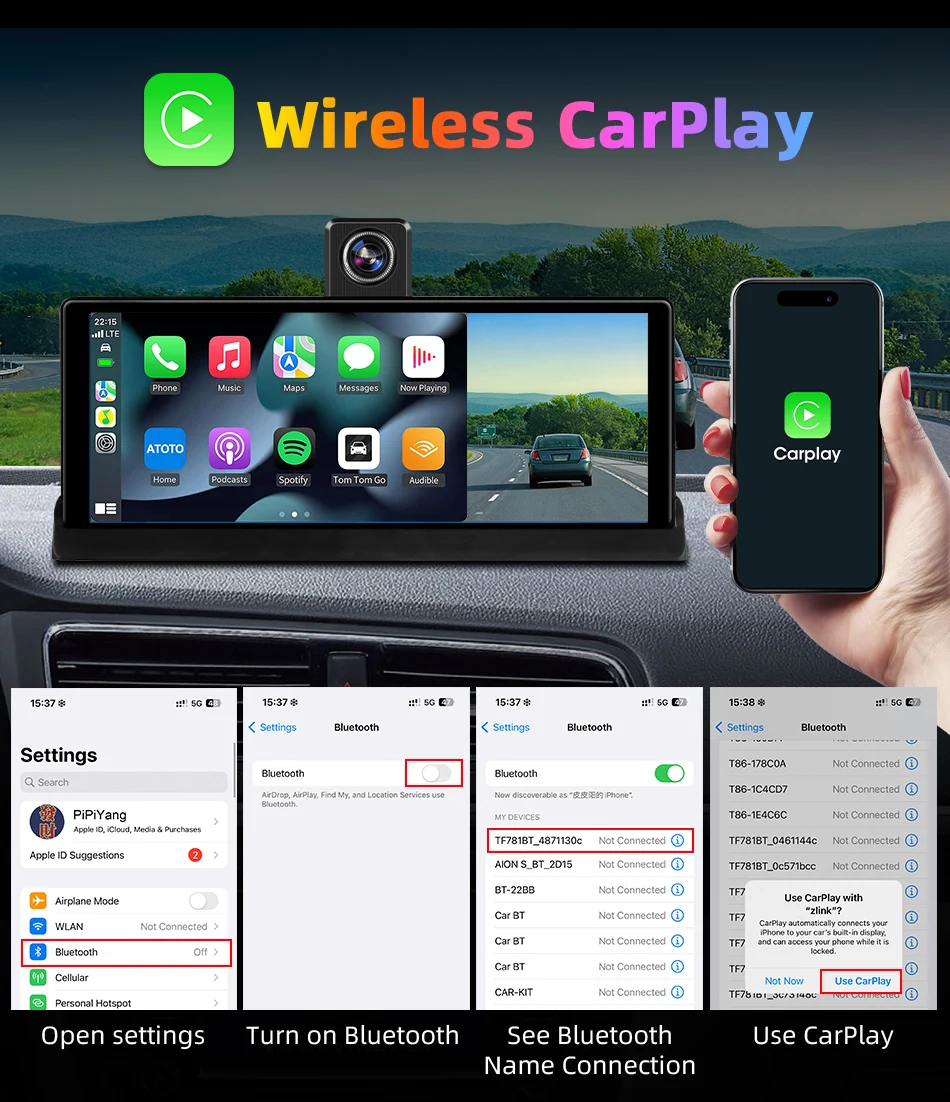
(1) If it is an Apple phone, the DVR needs to choose the Carplay connection method as the connection method, and the Carplay software installed on the Apple phone can directly connect to the DVR through the Carplay function;
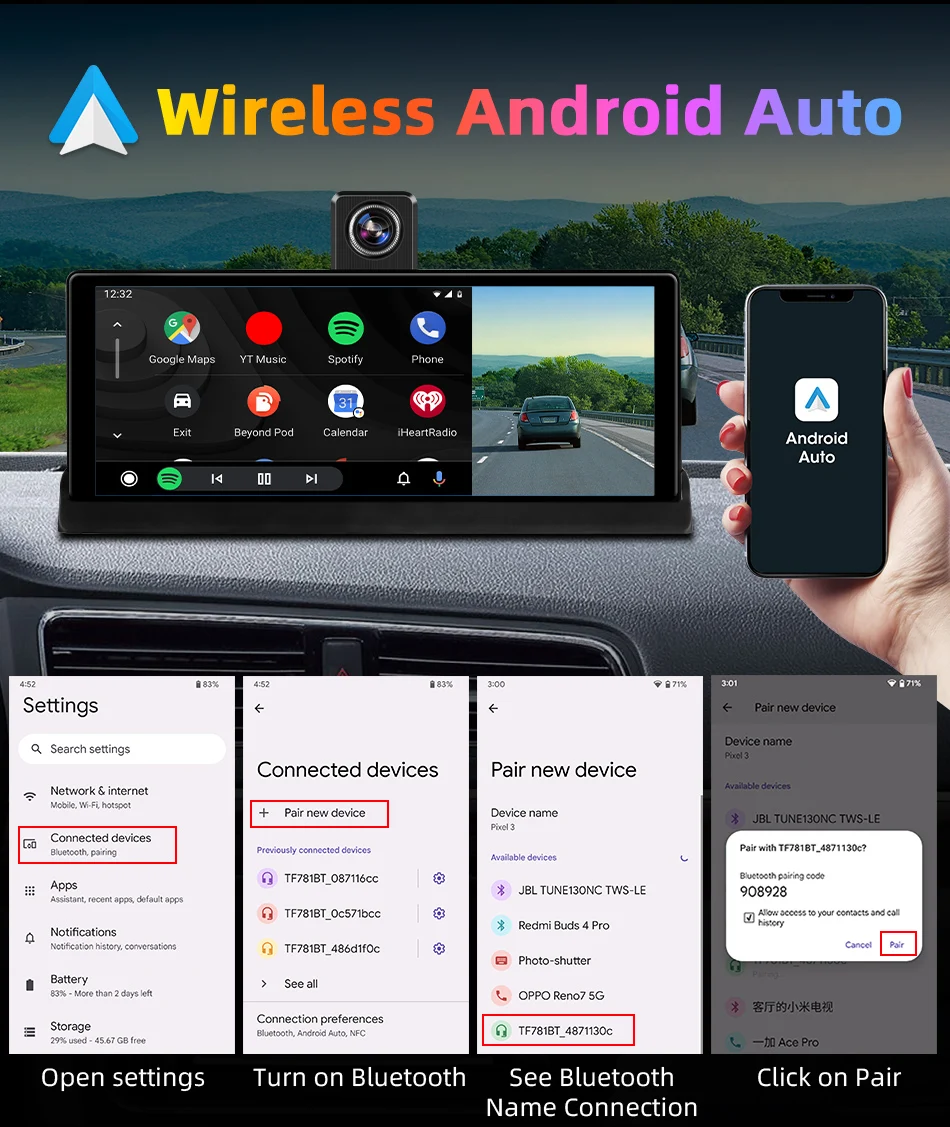
(2) If it is an Android system phone, the DVR needs to select Android Auto as the connection method, and then use the Android Auto software downloaded from the Google App Market on the phone to connect to the DVR.
About The Reversing Assist Function:
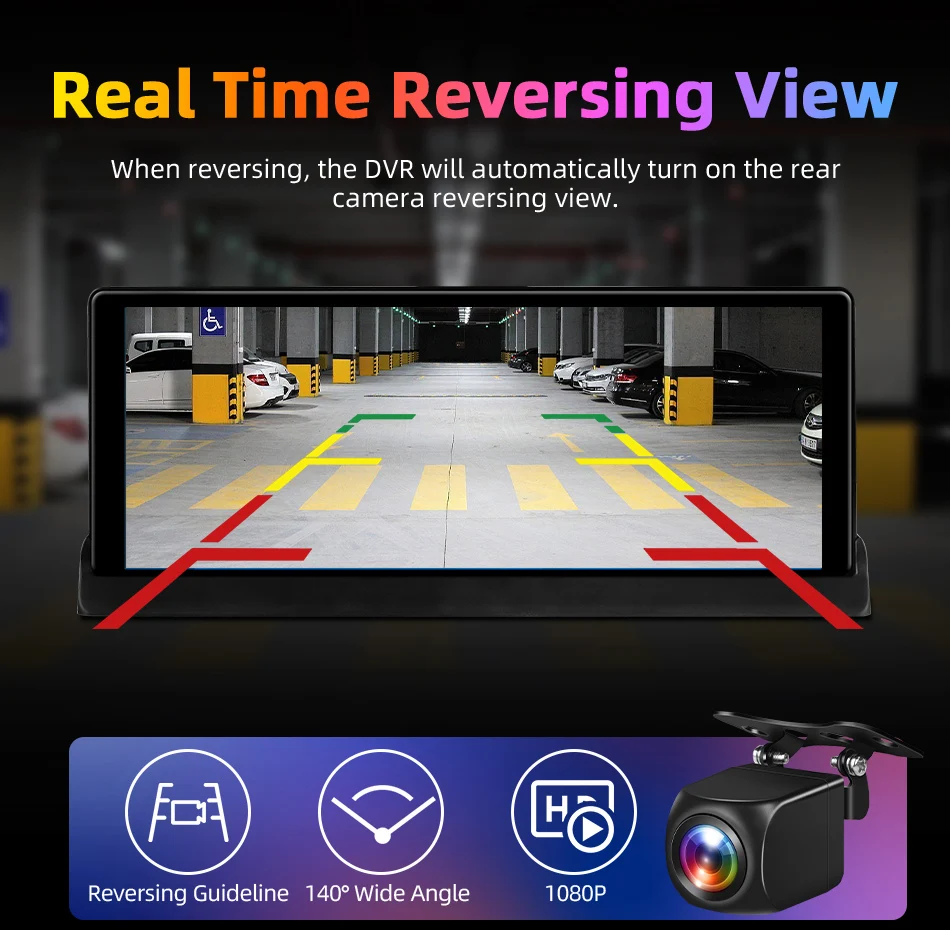
If the kit you ordered includes a rearview camera and you need to implement the reversing assist function, you need to connect the red signal wire of the rearview camera to the car's reversing light (the light will come on when reversing). If you don't need the reverse assist function, just disconnect the red signal wire and leave it unconnected.
FAQ:
1.How to contact the manufacturer's engineer?
If you encounter a very urgent problem that needs to be solved, please contact this email.
2.What is the system of this product?
This product does not contain an Android system, and its system is Linux, so you cannot download the software on your own.
3.Does this product have an independent speaker?
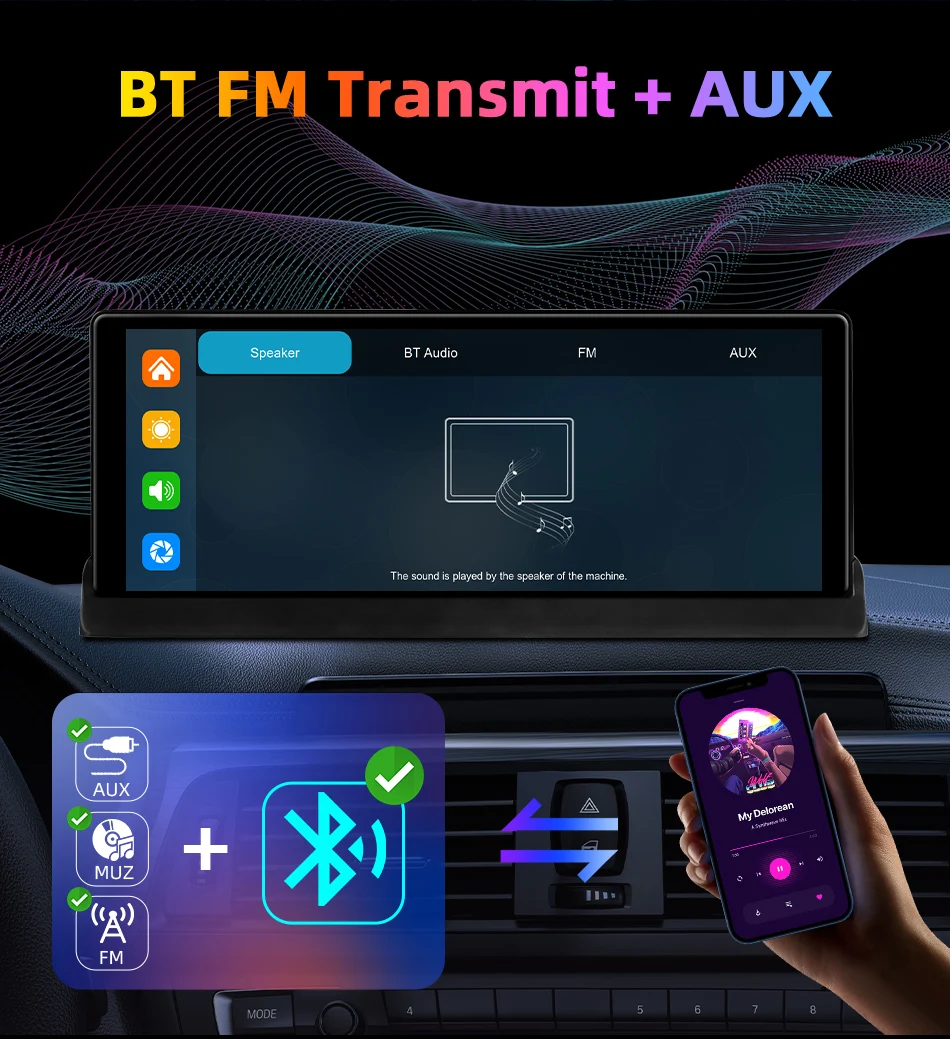
Of course, this product comes with an independent speaker, but we offer a 3-meter AUX cable as a gift. By connecting the AUX cable to your original car radio, you can enjoy better sound quality from the original car radio's in car amplifier system.
4.How do I connect and use the features of Carplay and Android auto?
The steps are very simple. Just open the Carplay connection page of the model, you will find the Bluetooth name of the model, and then use the Bluetooth page of your phone to search for the Bluetooth of the model. If the Bluetooth connection is successful, it will automatically connect to Carplay or Android auto
5.Why is my phone's Bluetooth successfully paired with the model's Bluetooth, but still unable to use the functions of Carplay and Android auto?
For iPhone phones, please open the general settings page of your phone, which has a settings page for "Car Play". Please go to the page to check if all the connected devices you have found have been turned on.
For Android phones, some Huawei, Xiaomi, and Samsung branded phones are unable to use the Android auto function But when using the features of Android Auto, you need to download an app called "Android Auto" from the app store so that you can quickly connect and use the features of Android Auto.
6.What should I do if I want to use more apps on this product model?
Firstly, through the use of the Carplay feature, some of your phone's apps will be displayed in the Carplay interface of the model. However, due to the limitations of the Carplay version, some third-party apps or video playback apps cannot be used on the model So you can download some Carplay compatible apps
The same applies to Android Auto.
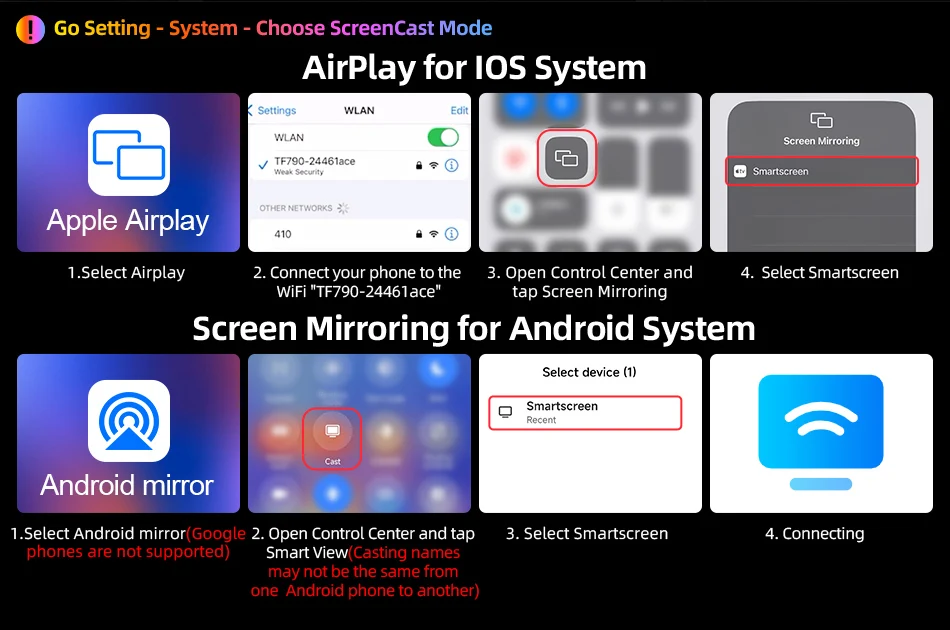
7.How do I use the features of Airplay and Miracast Mirroring?
You can check the connection steps on the link details page of our product. You need to download some specific apps. You can check the video tutorial in our cloud storage, which is located at :httpsdrive.google.comfiled1UpgxjCl81whXp9MUFyYdaSQ6DItJmivLview?uspsharing
8.What should I do if my product keeps restarting?
This is caused by voltage imbalance in the power supply. You need to ensure that you are using our matching power cable. Please do not use third-party power cables. Where do we need to power and test the product to use it? You need to power up the cigarette lighter in your car.
9.I want to use the navigation function on this product, what should I do?
Whether you are using an iPhone or an Android system phone, once you connect the Carplay and Android auto functions, you can use the navigation app inside the phone on the product model.
10.Does this product support connecting a reverse camera?
Of course it is supported. If you have purchased a configuration that includes a reverse camera, you can connect it according to the steps normally If you need to purchase a reverse camera yourself, you can search on the platform, but it is important to ensure that the reverse camera is compatible with the product.
11.How do I view videos recorded during my driving process?
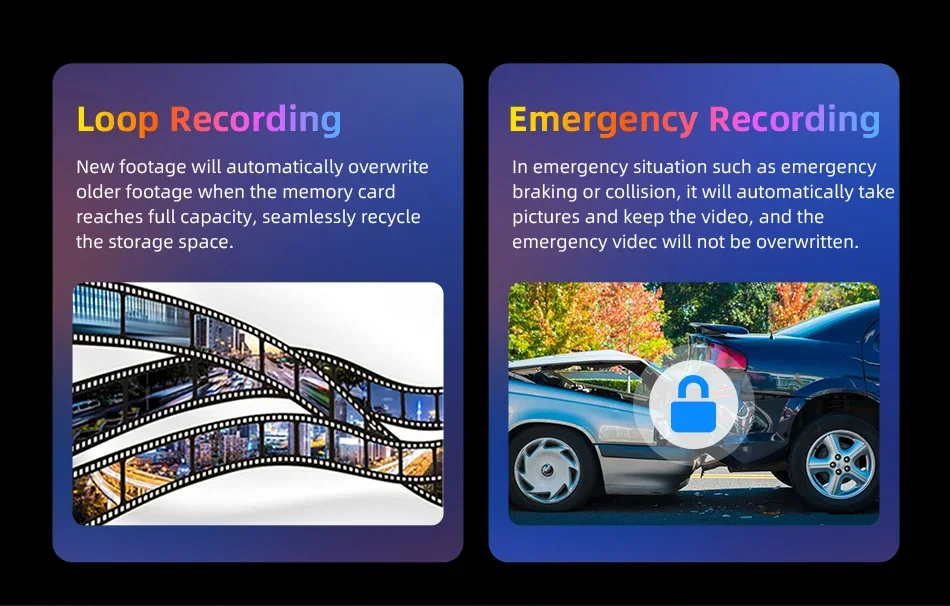
Your driving records will be saved on your TF card. If you need to view them, you can insert the TF card into your computer and view your videos When the video archive is filled with TF Card storage space, the first recorded video will be replaced.
12.Can I add a new language if the product does not have the language I usually use?
You can contact the engineer first, and the engineer will tell you if you can add the language you need. Then, the firmware for adding the language will be sent to you, and you can upgrade it.
13. How do I use this "dual Bluetooth" feature?
Firstly, please successfully match the Bluetooth of the phone with the product, then enter the Carplay function page, disconnect the Bluetooth of the phone, and finally connect the Bluetooth of the phone to the Bluetooth system of the original car radio to achieve dual Bluetooth mode.
Product features
Product features
Materials and care
Materials and care
Merchandising tips
Merchandising tips


Total des articles
Sous-total des produits